 SendStream
FAQ
Set up a box, connect another device, and see exactly who can receive what.
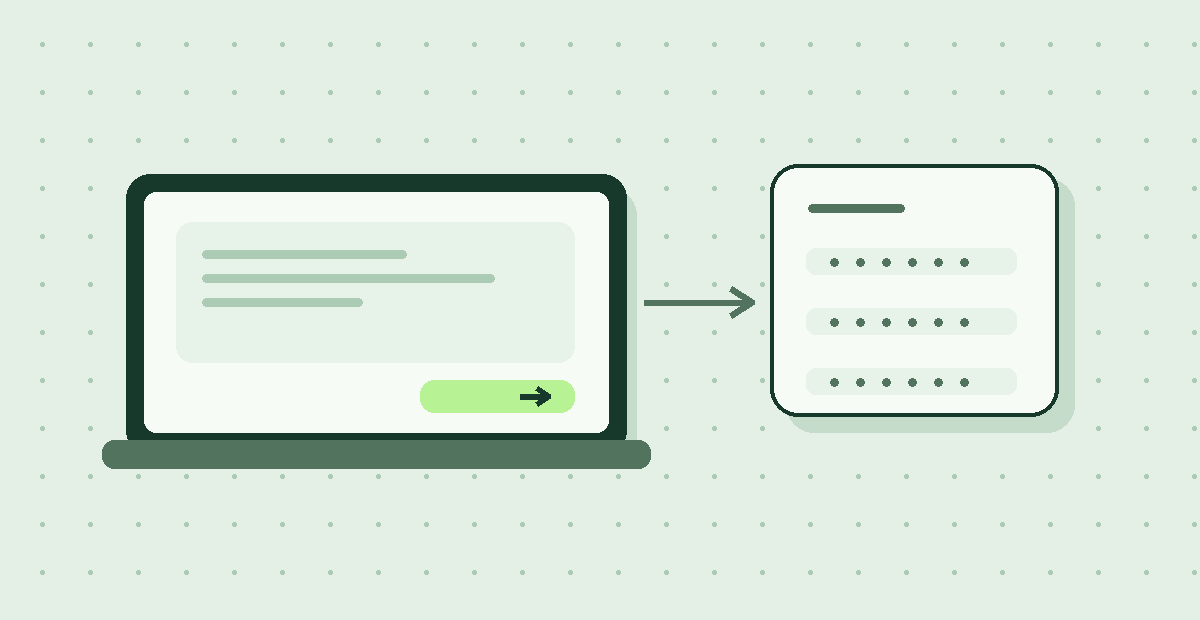
Start a box
Choose Start sharing on the home page, set your device name, access options and idle timeout, then open the box. You can add text and files before or after opening it.
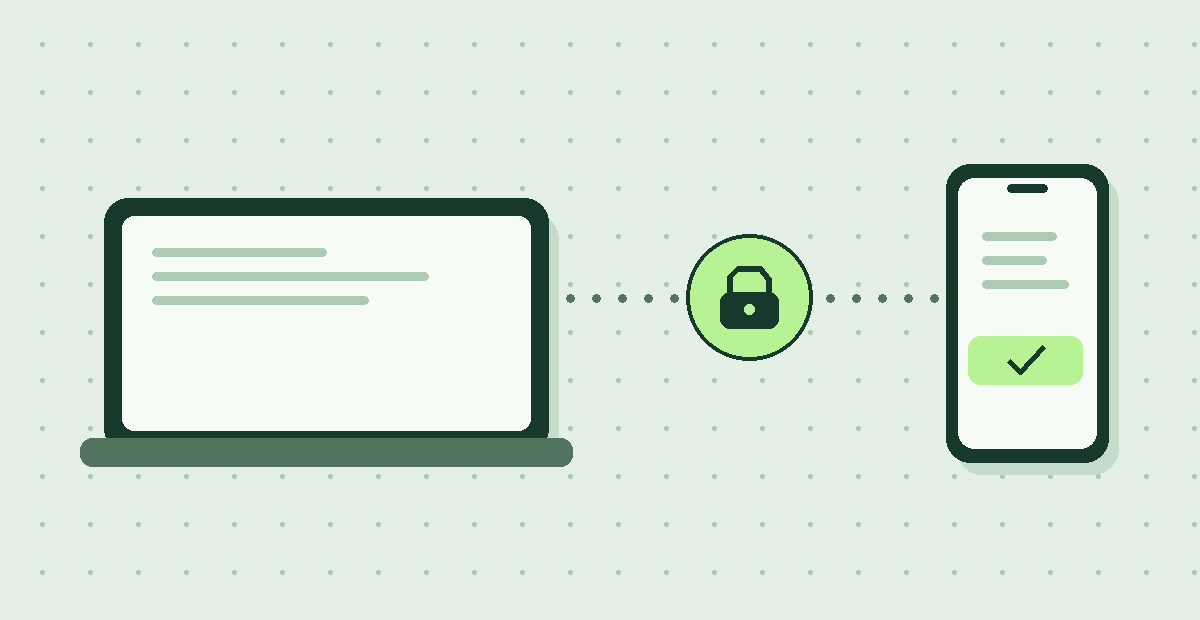
Connect another device
On the second device, scan the invitation QR code, open the box link, or choose Join a box and enter its ID. Enter any PIN and passphrase required by the box, then confirm the device name.
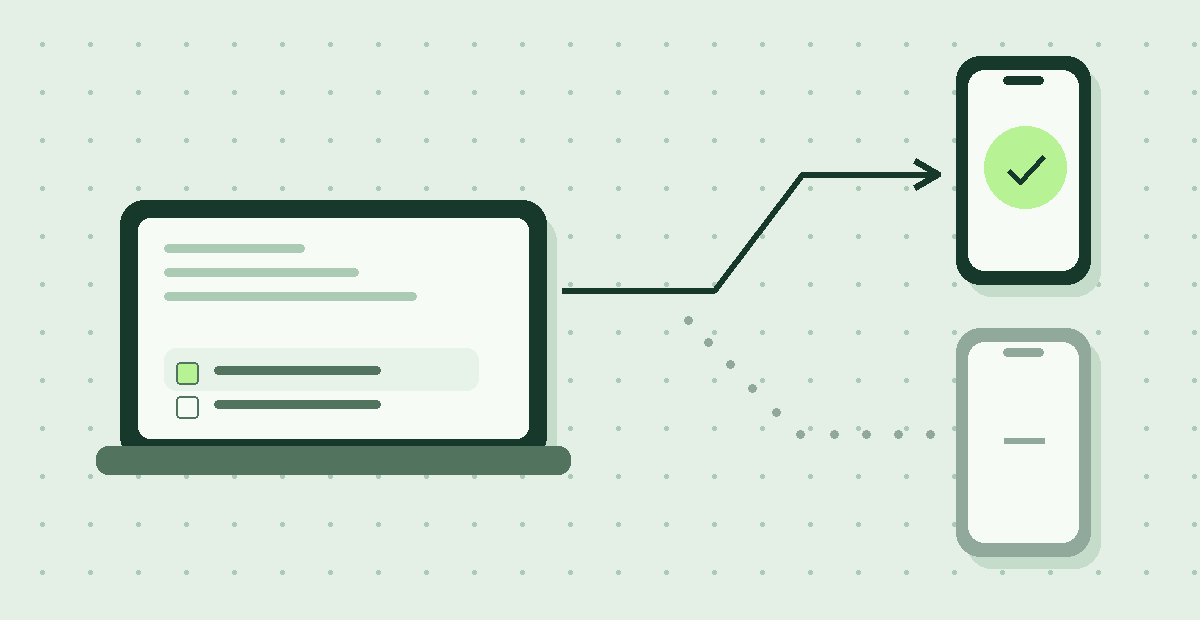
Choose who receives it
Send to everyone in the box, or select specific devices before posting. You can keep several boxes open and switch between them.
Getting started
What is a box?
A temporary room for exchanging text and files. The box ID identifies the room. The link fills in the box ID. You can require a PIN, a passphrase, both, or use only the Box ID. In that mode, anyone who knows or guesses the ID can join. Share any access codes separately from the link.
What do I need to connect?
Use a current browser over HTTPS. The box creator decides whether you also need a PIN or passphrase.
Can I change the credentials or device name?
Choose your access options and edit the generated codes on the setup screen before opening a box. The PIN accepts 6–20 digits and the passphrase 6–128 characters. The pre-join screen suggests a device name such as Windows or Mac. You can edit it before entering.
Sharing and editing
Which devices get my message?
Everyone is the default. Use the device checkboxes to choose specific recipients, or Select all / Deselect all. If you post before anyone joins, the message waits in your browser and is sent when an eligible device connects. Items addressed to everyone can also reach later arrivals while your box remains open.
Can I edit or remove something I sent?
Use Edit to change your text, replace an attachment, or change its recipients. Remove asks for confirmation. Updates are sent to the relevant devices while connected. Edits and deletions cannot recall a file already downloaded or text already copied.
Can I use several boxes together?
Yes. Use New box or Join a box and switch with the buttons at the top. Each box has its own chat and draft. Switching keeps your memberships active. Leaving one box does not close the others.
What are the limits?
Up to six devices per box, 8,000 characters per text message and 100 MiB per file. Each sender can keep up to 50 shared items and 200 MiB of attachments in a box. Recipient-side limits can also prevent delivery.
Connections and privacy
Why does a device say No direct connection?
Both devices can join signaling successfully even if their networks block a direct WebRTC connection. Keep both tabs open, try both devices on the same Wi-Fi, and check whether your VPN or network policy blocks peer-to-peer traffic. The app tries direct routes using STUN. When configured by the operator, Cloudflare TURN can relay encrypted traffic when a direct route fails. The Devices panel tells you if that fallback is missing or unavailable.
What happens if I refresh, leave, or close the tab?
Your browser keeps the chat and unsent items in memory for the active session. Refreshing or closing the tab ends its memberships and clears that browser’s chat. The box closes when its last device leaves. It also closes after the selected idle timeout, from 5 minutes to 30 days. Joining, posting, editing or removing an item restarts that timer. Save anything you want to keep before leaving.
Does SendStream store the files or chat?
The app sends text and attachments through encrypted browser-to-browser connections, directly when possible or through a configured TURN relay. The signaling service temporarily handles connection metadata so browsers can find one another. For details about that metadata, device names and hosting providers, read the privacy notice.
What can the receiving device see?
Participants see the display names in their box. A device that connects directly can learn the other device’s network address as part of WebRTC. Recipients can copy or save the content you send them.
How your data moves
Box access and connection setup
Both browsers use HTTPS to send access proofs and tokens, and to exchange device names and WebRTC connection details they encrypt with AES-256-GCM.
Derives an access proof and separate encryption keys locally, using any PIN or passphrase the box requires.
Checks the access proof and issues a short-lived join ticket. In production, it verifies Turnstile when a box is created or joined.
Temporarily stores the access verifier, token hashes, box and device IDs, activity data, abuse counters, and encrypted names and connection details.
Derives an access proof and separate encryption keys locally, using any PIN or passphrase the box requires.
If the box requires only a Box ID, anyone who knows or guesses the ID can join.
Google STUN helps browsers find a direct route and sees their public IP addresses. Connected devices can also learn each other’s network addresses.
Direct text and file transfer
Encrypts text, filenames and file contents before sending.
AES-256-GCM keys per device pair and direction, inside WebRTC’s encrypted DTLS connection.
Decrypts and holds received content in browser memory.